Bake only after checking coverage, scale, depth and seams; then export STL or 3MF and diagnose the sliced toolpaths, topology and wall thickness rather than trusting the shaded preview.
Baking converts the live preview into triangles. It subdivides where the height map needs detail, stitches selection boundaries, and checks mesh health before export.
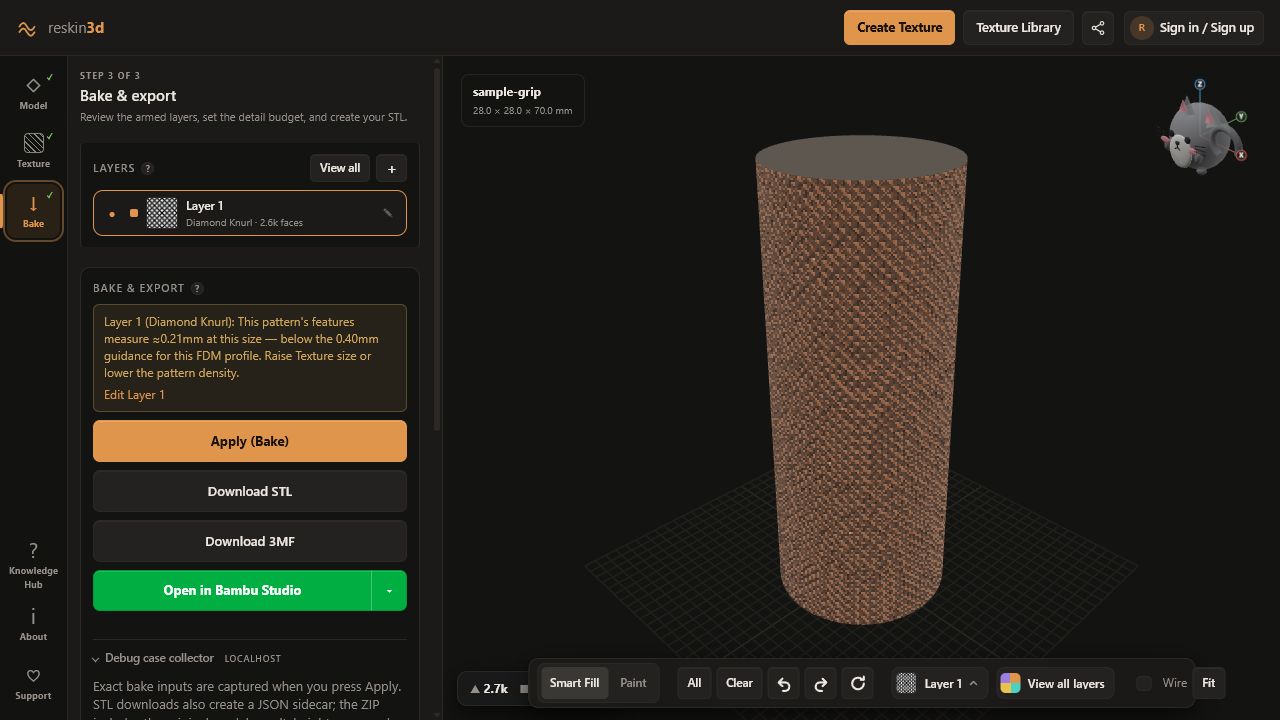
Review the armed layers
In the Bake stage, confirm that each intended layer is armed and has a selection, texture, and map. A baked ✓ layer sits out until edited or re-armed, preventing accidental double application.
- Coverage is correct from every viewing angle
- Scale and direction are intentional
- Polarity result sentence matches the design
- Warnings have been read and accepted or resolved
- Triangle budget fits the required detail
Apply the bake
Choose Apply (Bake). Keep the tab open. You can cancel a long bake, but the cleanest workflow is to simplify an over-detailed request—larger Texture size, lower baseline quality, smaller selected area—before trying again.
When complete, inspect borders, seams, poles, tight corners, and overlapping layers. The mesh health badge should not degrade from sealed to open or broken.
Undo or reset safely
Undo last bake returns to the geometry immediately before that bake while preserving the editable workflow. Use it when a depth, map, or selection needs revision. Reset Model reloads the untouched original and clears every bake and edit; use it only for a full restart.
Choose STL or 3MF
| When you have… | Choose… | Why |
|---|---|---|
| Maximum slicer compatibility and one textured mesh | Download STL | Compact binary STL plus a JSON sidecar for exact bake inputs |
| A 3MF-centred workflow | Download 3MF | Keeps the result in a modern container |
| Opening the result immediately | Open in Bambu Studio / OrcaSlicer | Hands the generated file to a supported local slicer flow |
Project save/load is for continuing editable Reskin3D work. Exported STL/3MF is the baked manufacturing result.
Inspect sliced toolpaths
Do not stop at the solid preview. Slice with the real nozzle, layer height, wall count, and material. Move through the texture layer by layer.
- If detail is absent, enlarge the texture or increase depth before increasing mesh density.
- If walls vanish, reduce carve depth, add source wall thickness, or use emboss.
- If a regular pattern breaks at one line, move the mapping seam or change projection.
- If organic repetition is obvious, enable Infinite variation or use a better tile.
- If the file is huge, lower mesh quality/budget or increase feature scale.
Common problems
| Symptom | Most likely cause | Try this first |
|---|---|---|
| Preview looks good; slice is smooth | Features or depth are below process resolution | Increase Texture size and depth, then reslice |
| Texture is backwards | Polarity is reversed | Switch Light areas / Dark areas |
| Visible vertical scar | Cylindrical or spherical seam | Move/rotate seam to the underside or an existing groove |
| Blurred crosses near corners | Triplanar blending | Adjust Blend sharpness or use Cubic / Surface mapping |
| Selection edge forms a cliff | Hard displacement boundary | Increase Edge feather or change the selected boundary |
| Bake is slow or output is huge | Fine texture over a large area | Increase texture scale or reduce detail/budget |
| Part becomes fragile | Carve depth exceeds safe wall allowance | Reduce depth, emboss, or thicken the source model |
Keep a reproducible case
STL downloads create a JSON sidecar with bake inputs. Local debug builds can also capture the original model, result, height maps, and bake history in a ZIP. When reporting a problem, include what you saw, where on the model it occurred, the expected result, and whether it appeared in preview, exported mesh, slicer, or physical print.