Use Smart Fill for connected surfaces, Paint for local corrections and separate layers when different regions need different textures, mappings or depths.
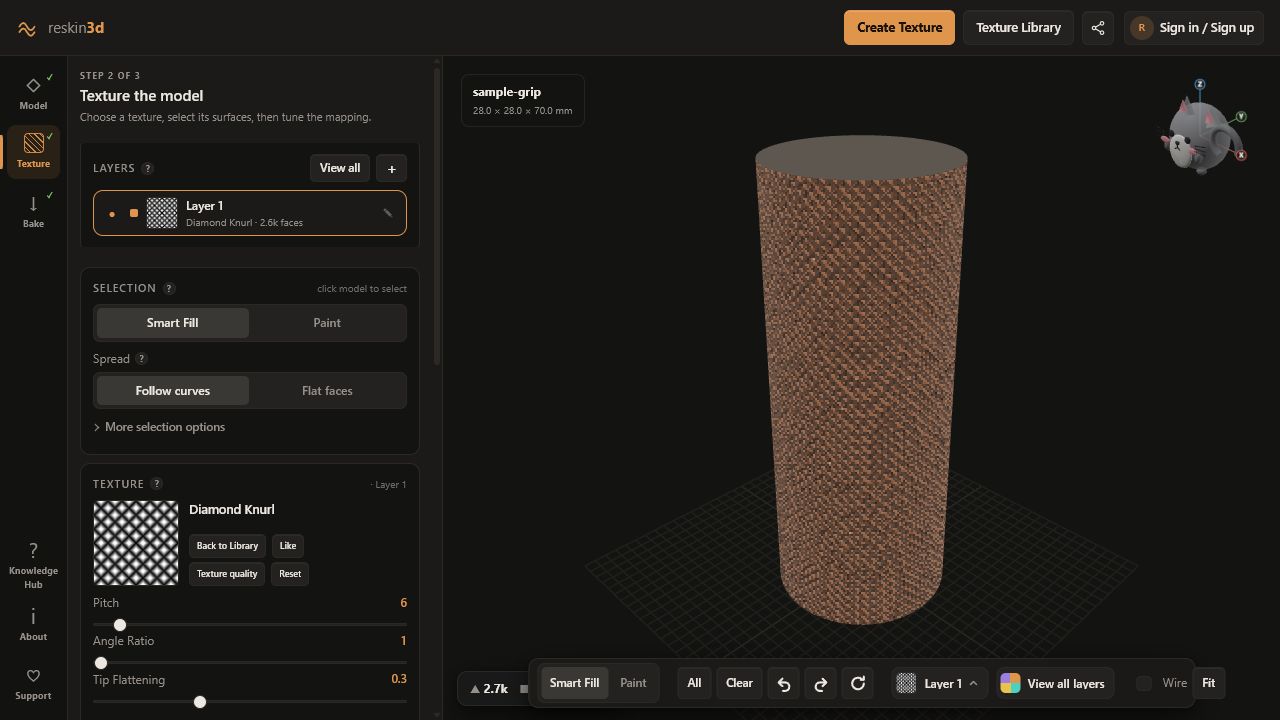
Every layer owns three things: selected faces, one texture, and its mapping settings. Treat layers as named instructions such as “knurl on grip” or “logo on front,” not as generic copies.
Use Smart Fill for the main region
Click a triangle to flood through connected neighbours. Follow curves continues while adjacent faces blend smoothly, so it can select a cylinder or organic shell. Flat faces stops when the surface changes direction, which is useful for a box with rounded edges.
Right-click a selected face to remove its connected region. Orbit to the back and underside; hidden accidental selections are a common cause of surprising bake results.
Repair with Paint and selection operations
Switch to Paint or hold E and drag to add coverage. Hold R and drag to erase. Adjust Brush size for the region and Brush angle tolerance for how readily the stroke wraps over curvature.
Keep Ignore backfacing on unless you deliberately need the brush to affect triangles facing away from the camera. Use Grow or Shrink for a one-ring boundary adjustment, then inspect the border at high zoom.
Protect boundaries
Use Lock current selection after a careful region is complete. Edge feather softens the displacement toward the selection boundary; it is useful when a hard height step would look or print poorly.
Create one layer per intention
Select + in Layers when a second texture, region, depth, direction, or projection is needed. A useful layer name answers “what and where?” Examples: “Leather wrap · handle,” “Fine ribs · thumb rest,” and “Logo · front.”
- Separate layers can use different textures on different faces.
- Overlapping layers accumulate geometry when baked in sequence; use overlap deliberately.
- View all shows combined coverage while an individual layer remains editable.
- The active layer’s texture chip and selection are the ones current controls modify.
Understand armed and baked states
An armed layer marked ● participates in the next bake. After baking it shows ✓ and sits out so it is not accidentally applied twice. Editing a baked layer re-arms it automatically because its instructions have changed.
Use Undo last bake before changing the previous result when you want a clean replacement. Reset Model is broader: it reloads the original file and removes every bake, layer, and selection.
Audit before baking
- The intended layer is active
- No orange coverage appears on hidden functional faces
- Each layer has a texture and visible map
- Only the layers intended for this pass are armed
- Overlaps and feathered borders are deliberate